

Contact Created
Useful when a new lead or customer record should receive an introductory message or immediate internal task.
TextTorrent SMS automation helps businesses create trigger-based messaging workflows using supported actions, delays, templates, tasks, and human follow-up. Start from a business event, control the sequence, and move replies to your team when a live conversation is needed.
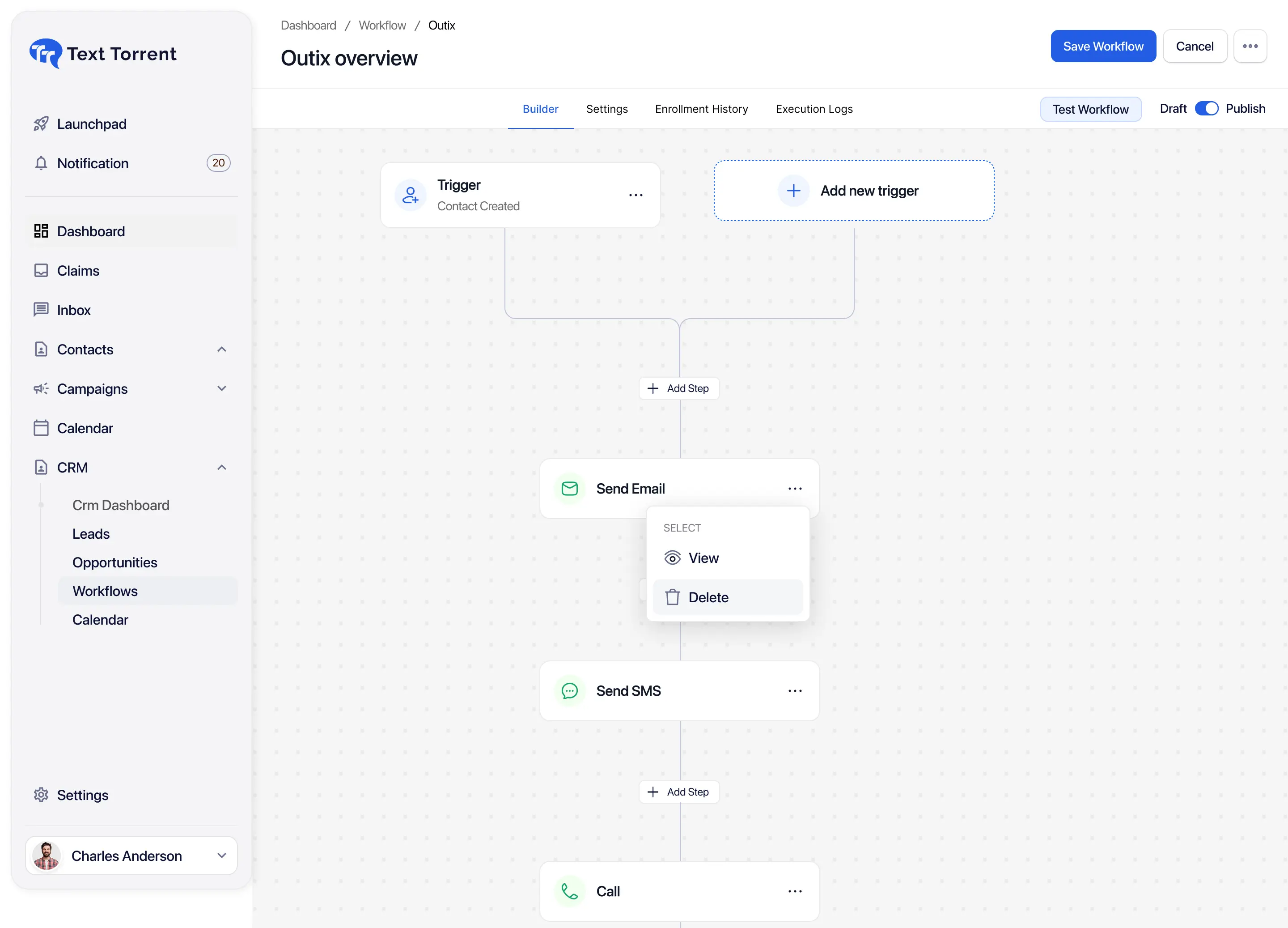
Repetitive follow-up becomes inconsistent when team members must remember every message, task, reminder, and contact update manually. Structured SMS automation keeps the next step connected to real business activity.

Manual workflows may delay acknowledgments and next-step messages when volume rises and attention is split across other work.

Users may repeatedly send the same messages, add the same tags, or create the same tasks without a defined workflow.

Follow-up depends on individual memory when no structured workflow exists, so contacts may miss the intended next step.

Teams need automation for routine steps while preserving human support for questions, objections, and exceptions.
A TextTorrent automation can connect a trigger event to Send SMS, Wait or Delay, tag updates, task creation, field updates, If/Else where supported, notifications, human conversation handoff, and a clear workflow end—so follow-up stays structured instead of ad hoc.
Use a clear sequence so every automation starts from a real event, continues through supported actions, and ends with either continued automation or team follow-up.
The workflow begins when a supported event occurs—such as Contact Created, Contact Updated, Opportunity Created, Stage Changed, Assign Tag, or Import Contact.
The workflow can send an SMS, create a task, update a supported field, or perform another supported action after the trigger fires.
A delay pauses the workflow before the next step so follow-up can continue after a defined waiting period.
Where If/Else is supported, a branch can direct contacts into different paths based on the criteria you configure for that step.
The workflow can continue automatically or move into a team-managed conversation when a live reply is required.
Every workflow should finish at a clear endpoint so contacts do not remain in an unfinished process.
TextTorrent SMS workflow automation starts from supported contact, opportunity, and tag activity—not from invented website, payment, or link-click events.
Useful when a new lead or customer record should receive an introductory message or immediate internal task.
Useful when a meaningful contact change should start the next follow-up or operational step.
Useful when a note entry should prompt a related reminder, task, or message where that process is defined.
Useful when creating a task should also start a related messaging or operational follow-up path.
Useful when a new opportunity should start acknowledgment, nurture, or internal assignment steps.
Useful when a pipeline move should start status messaging, reminders, or team tasks tied to that stage.
Useful when imported contacts should enter a defined onboarding or follow-up workflow after import.
Useful when a tag identifies a contact for nurture, re-engagement, or another specific workflow path.
Review the supported contact, opportunity, and tag trigger categories in the TextTorrent automation builder before activating a workflow.
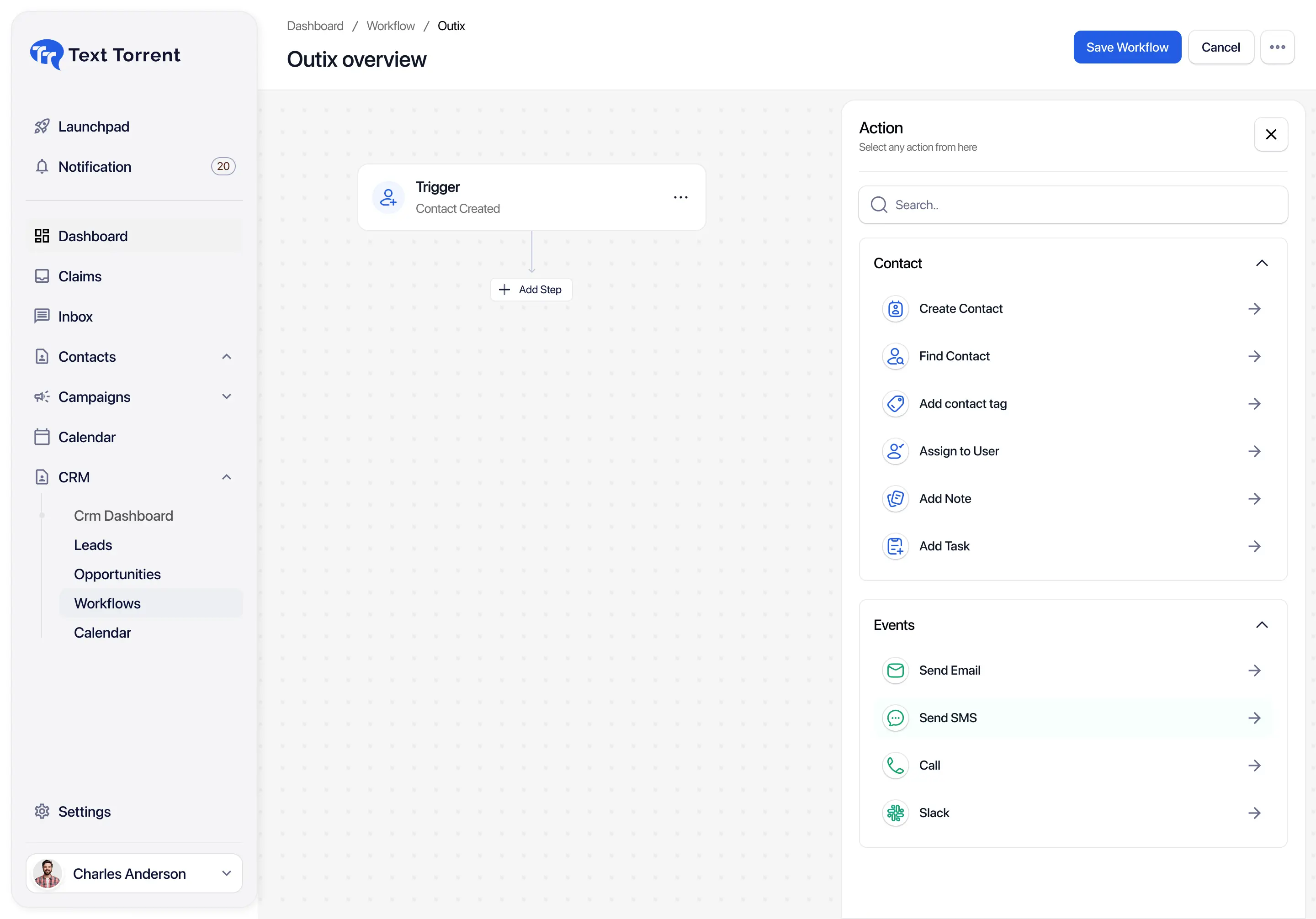
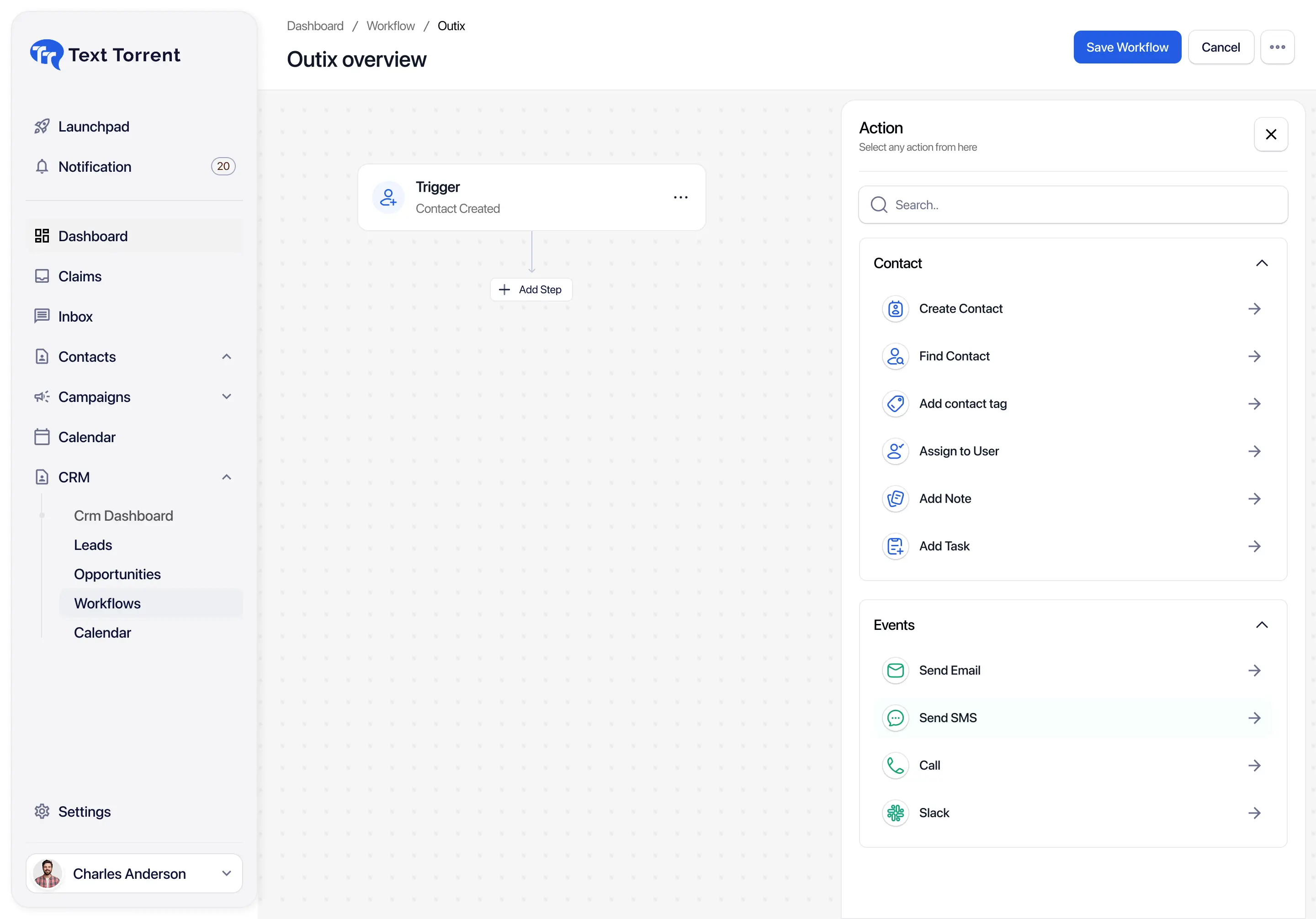
After a trigger fires, TextTorrent automations can run the supported messaging and operational actions configured in the builder.

Send a prepared business text message as part of the workflow so follow-up does not depend on someone remembering to send it.

Pause before the next action so reminders and follow-ups can continue after a defined waiting period.

Organize contacts or move them into another process by adding or removing tags as the workflow progresses.

Create a task for a team member so automated messaging can connect to human follow-up where supported.

Update a supported contact or opportunity field. Not every field is necessarily editable through automation.

Branch the workflow based on supported criteria so contacts can follow different paths when conditions differ.

Create a team notification through a supported channel so someone can review the next manual step.

Close the process at a clear endpoint so the automation does not continue indefinitely.
A Wait or Delay step pauses the workflow before the next action so follow-up can continue after a defined waiting period.
Appropriate delay timing depends on the message purpose, subscriber expectations, consent, quiet-hour requirements, and the business workflow. Exact minimum and maximum delay values should be confirmed in the current TextTorrent builder. Specific-date or “wait until field date” behavior is not claimed unless verified.
Where If/Else is supported, a condition checks a clear criterion, then directs the contact into the true or false path. Each path should end cleanly, and teams should test both branches before broader activation.
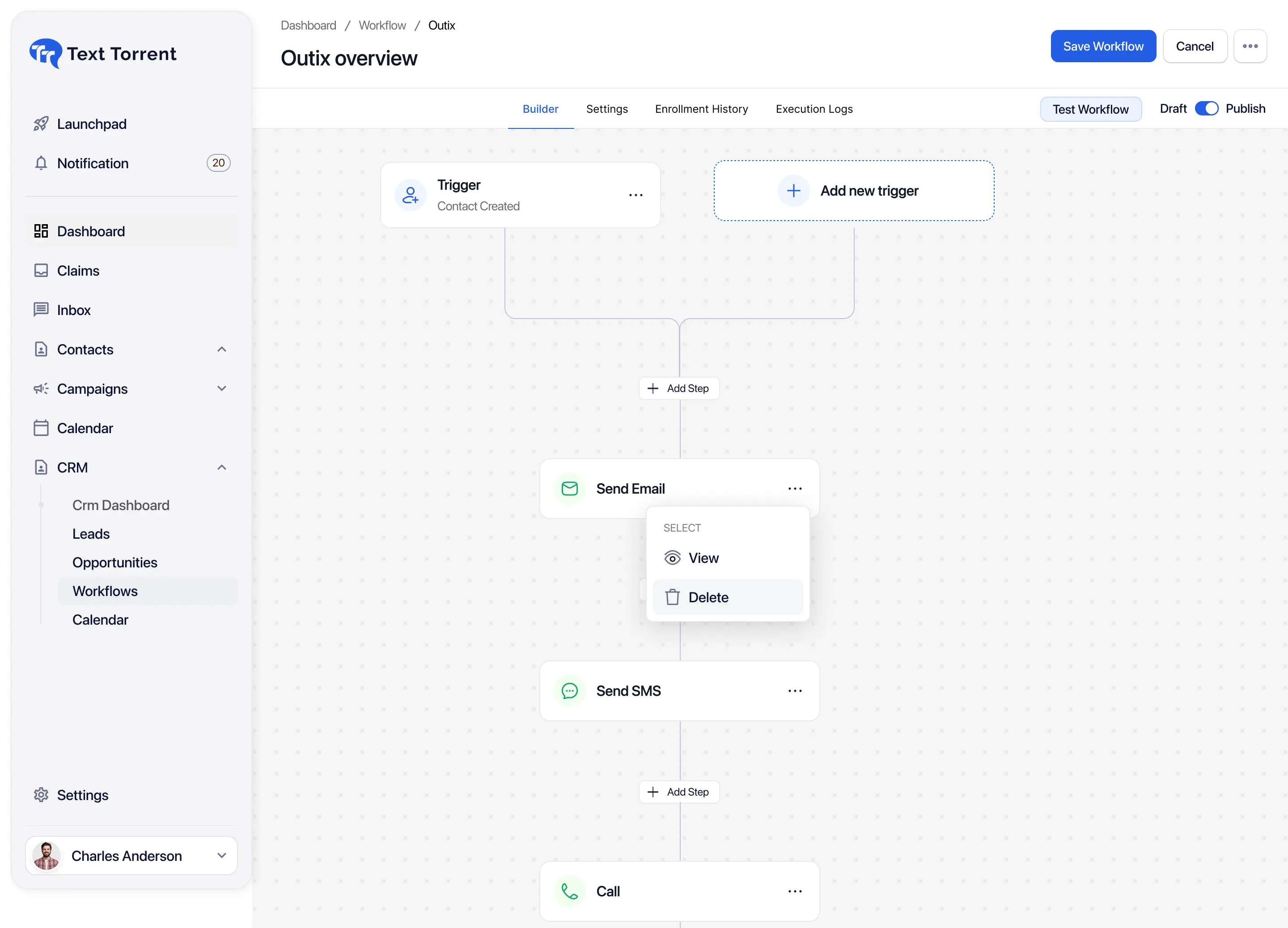
A visual workflow helps teams review the trigger, message, wait step, task, and end node before activation—so the process is clear before contacts enter it.
Contact Created → Send Welcome SMS → Wait → Create Follow-Up Task → End
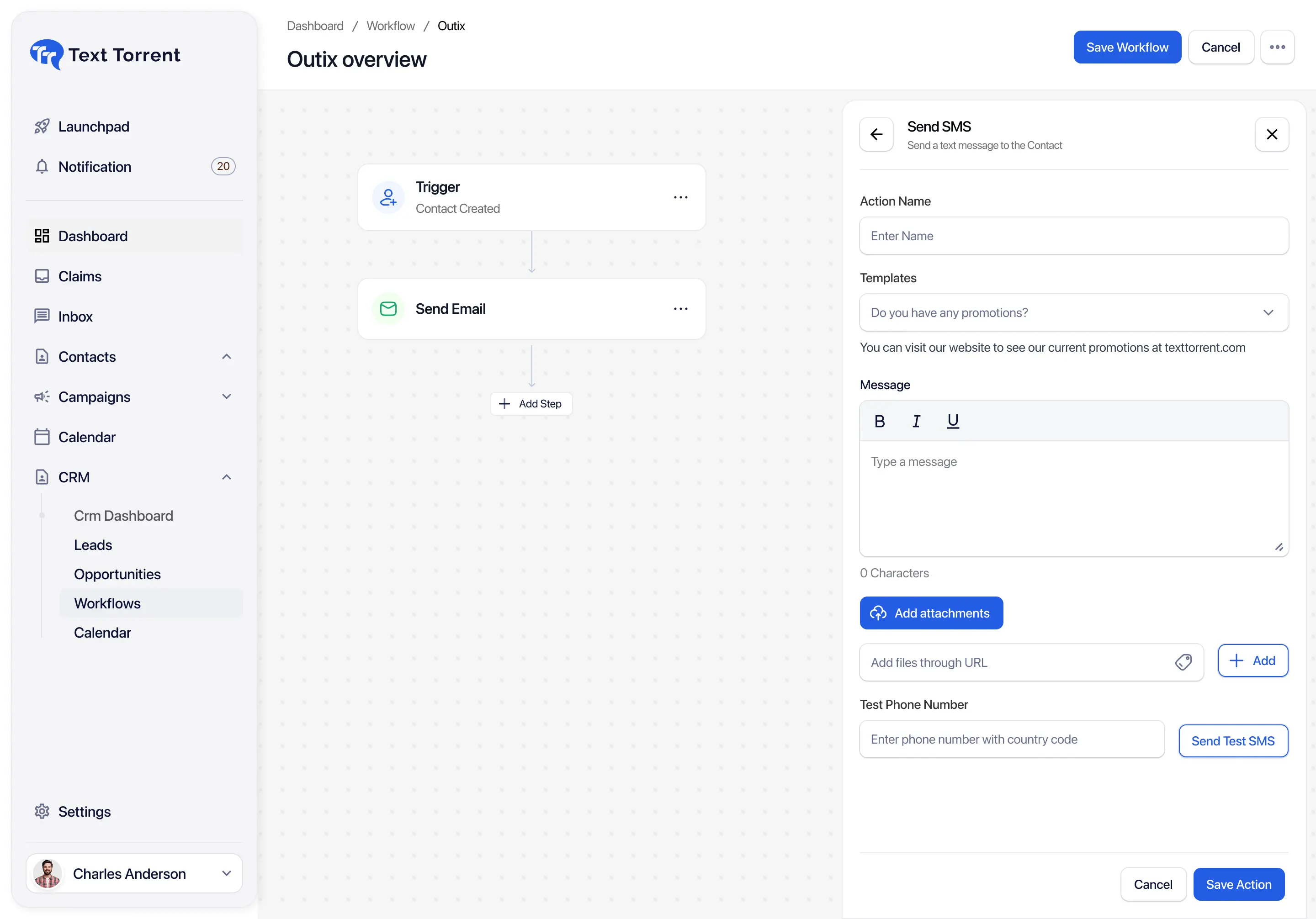
Reuse reviewed template wording when preparing Send SMS actions. Confirm whether your automation builder currently supports selecting a saved template before relying on that workflow.
Direct template selection inside every automation action is not claimed as verified. Templates help teams reuse reviewed copy, but they do not create consent or compliance automatically.
Contact Management can support automation through contact records, tags, groups, supported fields, subscriber status, opportunity status, and notes or tasks where available.
TextTorrent does not claim automatic consent validation. Review Opt-Out Management alongside automation design.
Automation should support the team rather than replace appropriate human judgment. Automated first responses, reminders, tasks, and notifications can prepare the next step—while Claims, the shared inbox, conversation history, and manual follow-up handle exceptions and sensitive questions.
Potential flow: Automated SMS → Customer reply → Claims or shared inbox → Team member reviews context → Direct response.
Automation should not continue blindly when human review is required. TextTorrent does not claim that replies automatically stop or change a workflow unless that behavior is separately verified. AI-assisted handoff is not claimed.
Related workflows: Shared SMS Inbox, Two-Way Text Messaging.
One approach is not universally better. Choose scheduling when the send must happen at a known date and time. Choose automation when the process should start after a business event.
Best for
Create campaign → Choose date and time → Schedule
Best for
Trigger occurs → Workflow starts → Actions run
These examples show how trigger-based SMS and operational actions can support sales, operations, and follow-up teams without promising conversion outcomes.
Sales leads, MCA inquiries, real estate inquiries, and insurance prospects can receive a consistent first step.
Explore related workflowApplication and operations teams can keep document requests moving without relying only on memory.
Explore related workflowIf date-based automation is unavailable for a use case, teams can use another supported trigger or a scheduled campaign instead.
Explore related workflowPipeline movement can start the related customer update and internal ownership step.
Explore related workflowTagged contacts can move through approved follow-up messages without calling the process a drip sequence unless multi-step messaging is confirmed for that account.
Explore related workflowRe-engagement stays connected to both an automated first touch and a clear human next step.
Explore related workflowScenario: a new opted-in business lead is added to the system and needs a consistent first follow-up without aggressive or misleading funding claims.
Contact Created triggers the automation.
TextTorrent sends an introductory message.
The workflow waits for a defined period.
A follow-up task is created for a team member.
If appropriate and supported, the workflow checks whether the contact moved to another stage.
The team member continues the conversation manually.
Automation increases consistency only when teams still review triggers, timing, consent, and endpoints before activation.

Define a reasonable message limit and stop condition so contacts are not overwhelmed.
A workflow should begin only from the intended business event.
Timing should reflect customer expectations, quiet-hour needs, and the use case.

Automation must not continue promotional messaging after an opt-out.

Test workflows with records that have incomplete contact information.
Every workflow and branch needs a clear endpoint.

Complex, private, or exceptional issues may require human follow-up.
Test with internal or approved contacts before broader activation.
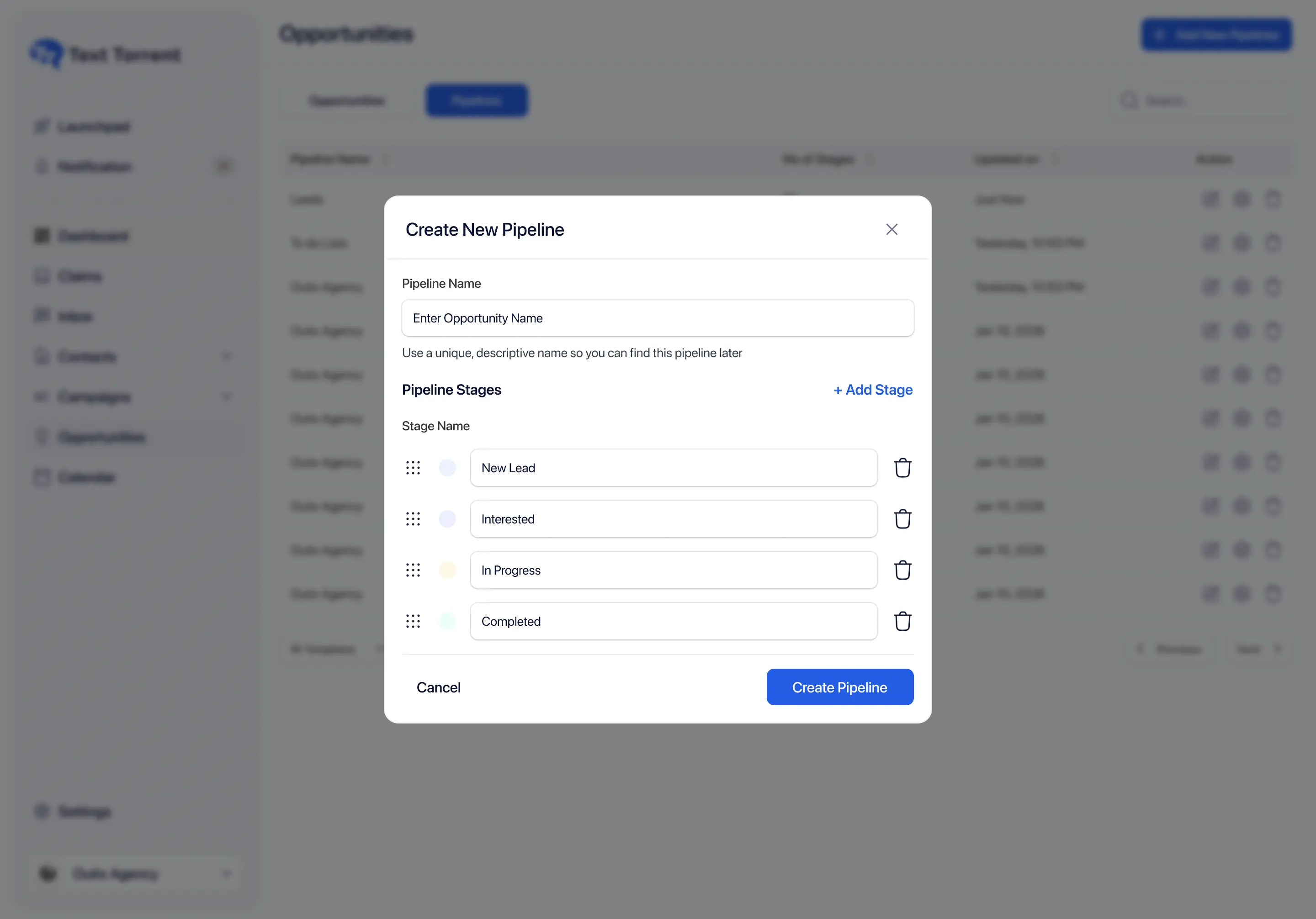
Teams should test workflows with internal or approved test contacts before broader activation. Use a practical pre-launch review even when a dedicated testing mode is not claimed.
Automation increases consistency, but it does not remove consent, registration, or content obligations.
TextTorrent provides messaging and workflow tools, not legal advice. Customers remain responsible for obtaining appropriate consent, respecting opt-out requests, choosing suitable message frequency, protecting customer information, and complying with applicable laws, carrier requirements, industry rules, and the terms of their messaging registration.
TextTorrent keeps SMS automation connected to conversations, contacts, templates, and operational follow-up—without treating basic workflows as a separate messaging silo.

Build supported automation using connected triggers and actions.
Use workflows designed around SMS messaging and team follow-up.

Reuse approved messages inside supported automation actions where template selection is available.
Use supported customer records and operational fields to start and organize workflows.

Move customer responses into a team-managed conversation workflow when a live reply is needed.
Start with a seven-day free trial, then choose a plan that matches your messaging volume. Full plan details live on the pricing page.
Everything in our starter plan includes
Everything in starter plus
Everything in growth plus
Full access to all platform features
Practical answers for teams evaluating TextTorrent for trigger-based SMS workflows.
SMS automation uses supported triggers and actions to run repeatable text-message workflows. Instead of relying only on manual sends, teams can connect a business event to actions such as sending a text, waiting, updating tags, creating tasks, or ending the workflow.
TextTorrent automations start from supported contact activity, opportunity activity, and tag activity. Defined trigger concepts include Contact Created, Contact Updated, Note Added, Task Added, Opportunity Created, Stage Changed, Import Contact, and Assign Tag.
Defined workflow actions include Send SMS, Wait or Delay, Add or Remove Tag, Create Task, Update Field where supported, If/Else where supported, Send Notification through a supported channel, and End Workflow.
Yes. A Wait or Delay step can pause the workflow before the next action. Exact minimum and maximum delay values should be confirmed in the current TextTorrent builder.
Reuse reviewed template wording when preparing Send SMS actions. Confirm whether your automation builder currently supports selecting a saved template before relying on that workflow. Templates do not create consent or compliance automatically.
Yes. Where Create Task is supported in the workflow builder, an automation can create a follow-up task so a team member can continue the process manually.
Supported messages can receive replies and move into the TextTorrent Claims or shared inbox workflow so team members can continue the discussion. TextTorrent does not claim that a reply automatically pauses, cancels, or changes the automation unless that behavior is separately verified.
SMS scheduling is date-and-time based: you prepare a campaign and choose when it should send. SMS automation is trigger-based: a supported business event starts the workflow, then configured actions run.
Teams should review and manage active workflows after launch, including pausing outdated automations. Exact draft, active, paused, edit-while-active, duplication, and deletion controls should be confirmed in the current TextTorrent builder.
No. Automation helps businesses create consistent workflows, but it does not guarantee delivery, replies, conversions, or revenue.